ℹ️
JVC Camcorder
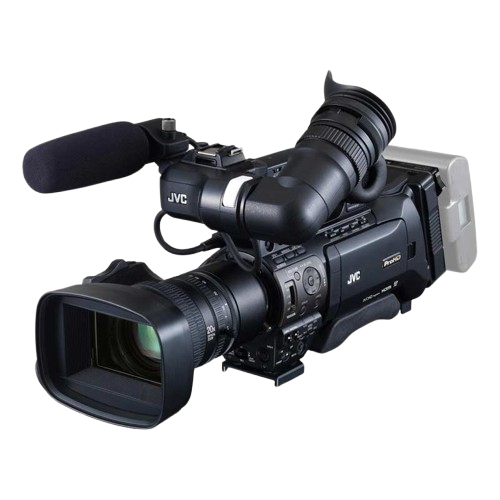
Supported Models
Model | Description |
Supported Control
Exposure | |
| |
| |
| |
White balance | |
| |
| |
| |
Primary corrections | |
| |
Advanced corrections | |
| |
| |
| |
Lens | |
Auto Iris
| |
Other controls | |
| |
|
Workflow
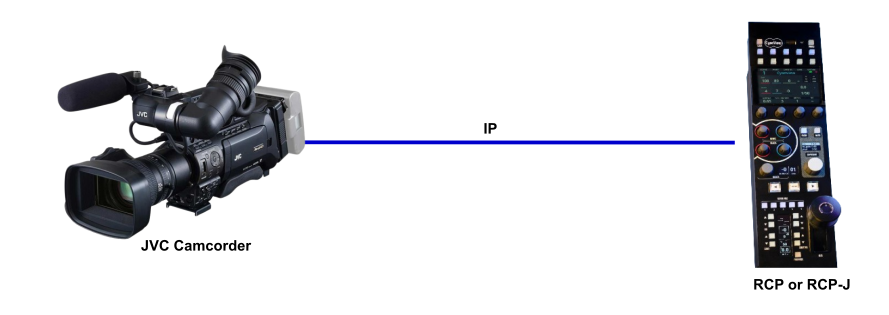
This camera is controlled over IP. However this requires a compatible dongle (check the camera manual).
Configuration
Camera Setup
If you have a motorised lens, ensure it is in AUTO if you want to control if from the RCP
Setup a static IP in your camera
RCP Setup
Access the RCP Web User Interface
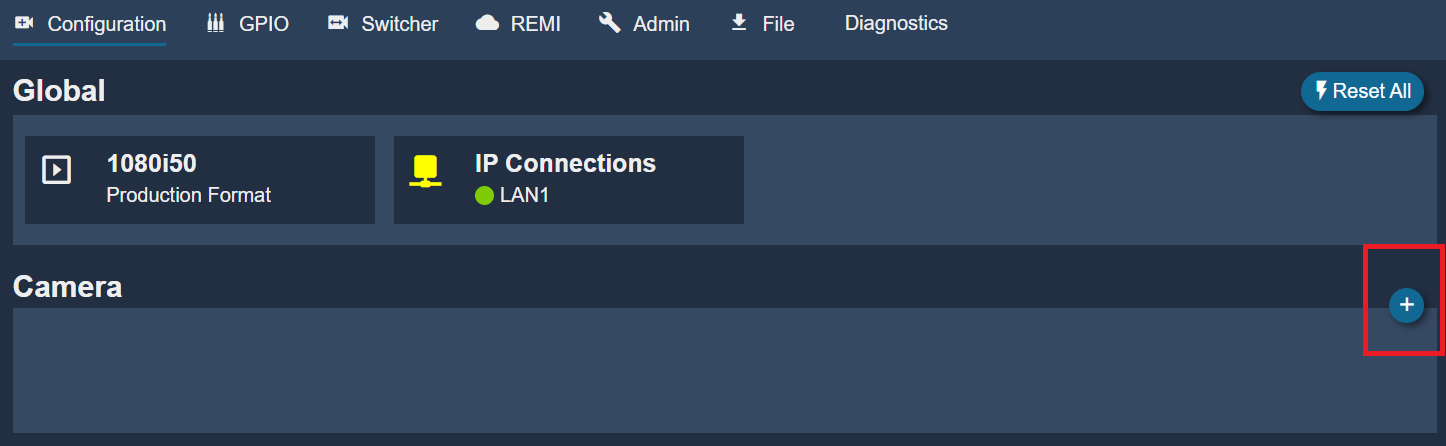
Create a new camera:
- In the Camera section click on + to add a new camera
Access the RCP Web User Interface
Please see Serial Camera Configuration
Create a new camera:
- In the Camera section click on
+ to add a new camera
- In
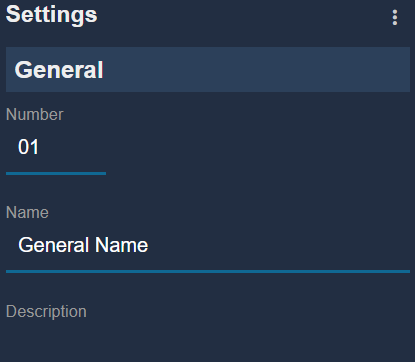
General add a cameranumber andname. This is anything related to your workflow.
- select brand:
JVC - select model:
Camcorder - Ensure the IP matches the one configured in your camera.
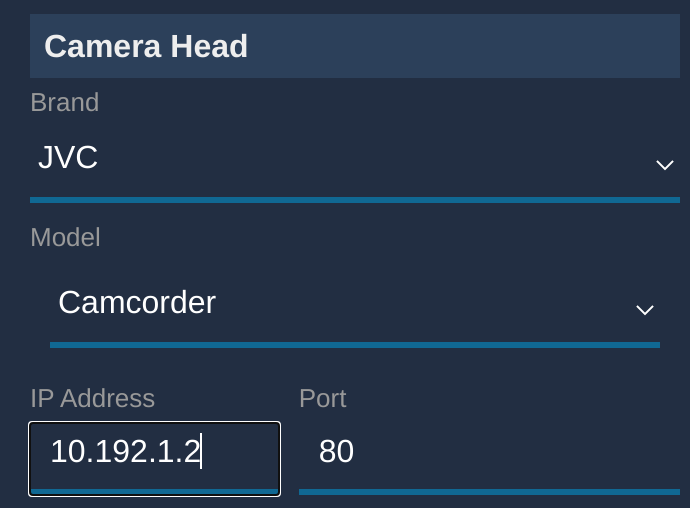
- If configured correctly, the status should go green