ℹ️
Serial bus
Dreamchip Serial bus
Supported Serial topology
A serial camera connected to CI0
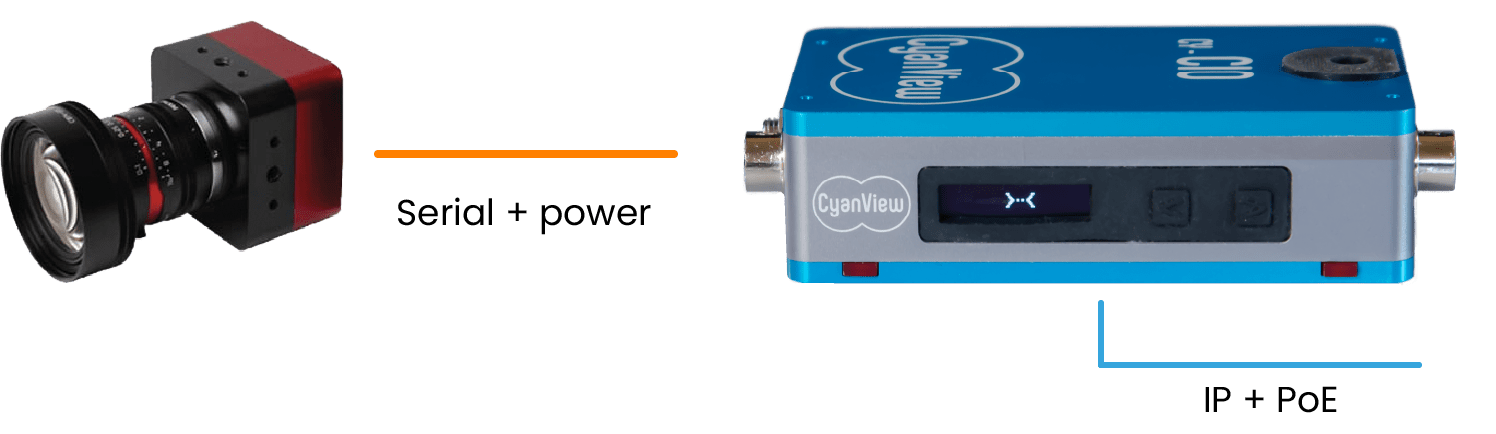
- Basic configuration where CI0 turns a camera into managed camera.
A camera on each port

- Several Serial camera connected to CI0.
- One serial camera by port.
- Two ports available on base CY-CI0 model, three ports available on CY-CI03P.
A BUS of cameras
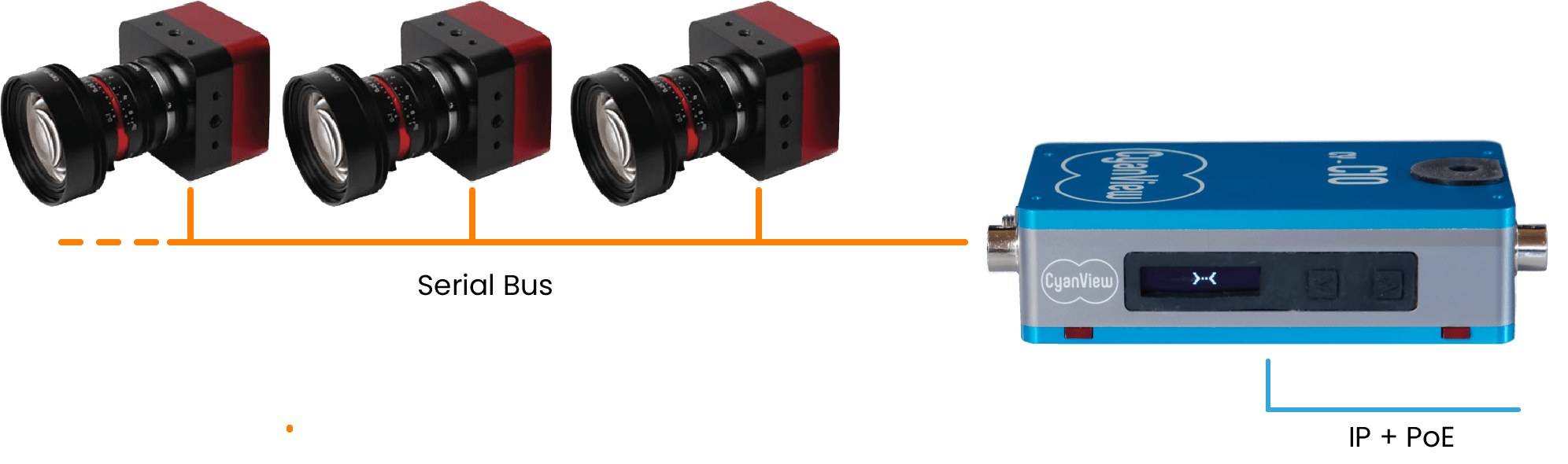
- When camera supports Serial BUS, several camera can be connected on a single port (see: CI0 Serial BUS).
Black magic
Black magic
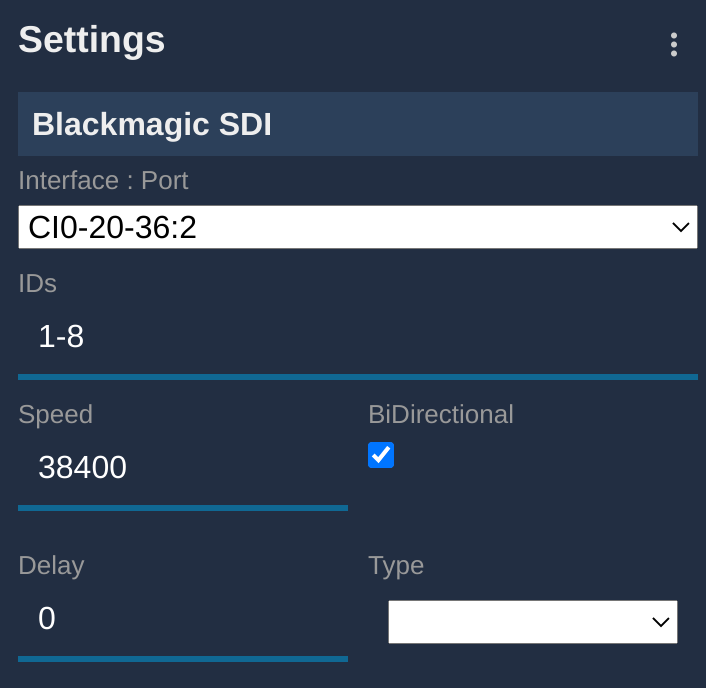
- In your RCP/RIO web UI
- Click on + in the Features section
- Select Blackmagic : SDI Bus
- Click on the new block that just appeared
- And select your CI0 (port 3 for a CI0-BM, and 1 or 2 if you're using a CI0/RIO+RSBM) in the first select box
- Ensure to adapt the IDs range based on your setup (here we handle the cameras from ID 1 to 8):
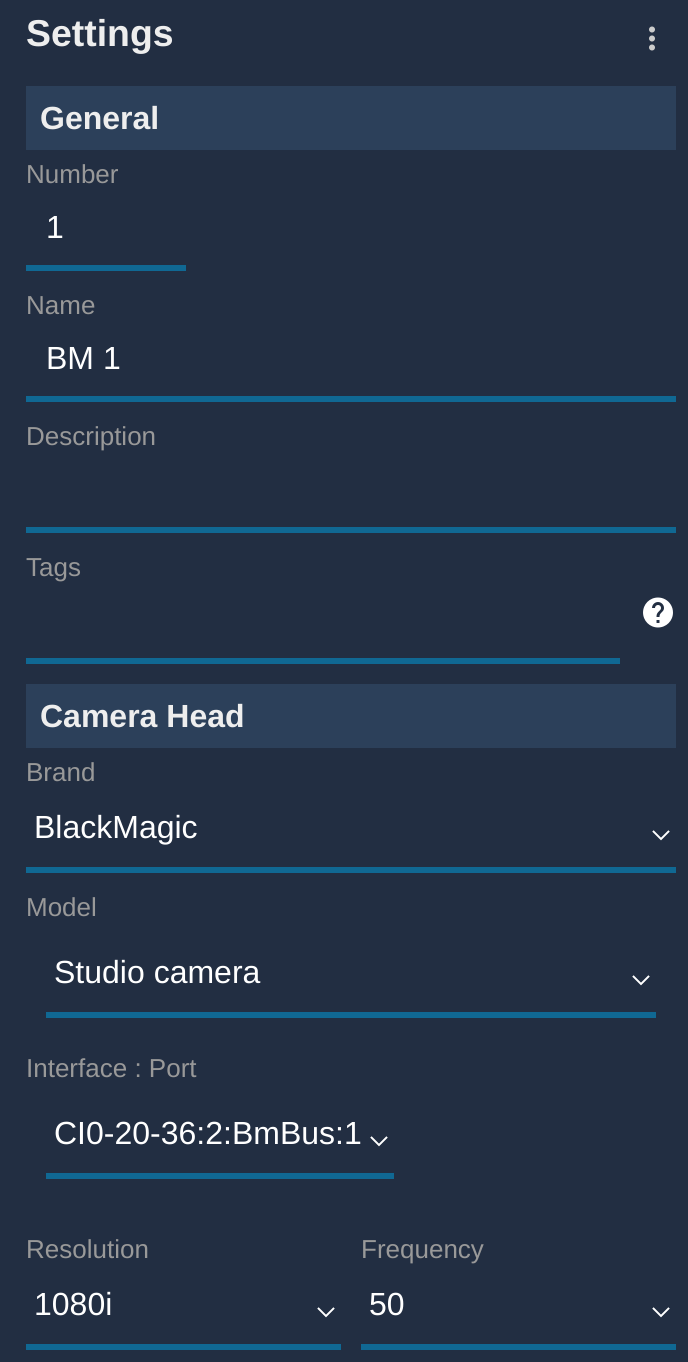
Setup the camera on the bus:
- Click on the + in the camera block, a new panel will appear on the right
- In General Configure a Number and a Name
- Select Blackmagic for the brand and Studio camera as the model.
- Then select in the interface drop-down list your CI0 serial and camera ID.
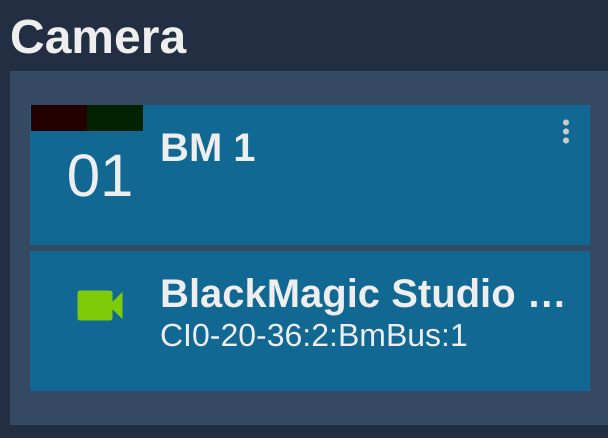
- Here, my CI0 is CI0-20-36, I have an RSBM on the port 2 and on the bus, my cam has the ID 1:
Your camera should be green and working:
Marshall
RS485 Bus
VISCA allows up to 8 cameras to be connected to an RS485 bus. When a VISCA bus is added and assigned to a CI0 serial port in the configuration, up to 8 interfaces become available. Set each camera with a different Address (see Communication Settings) and select in the configuration GUI the corresponding port that matches the address.