
Wiring
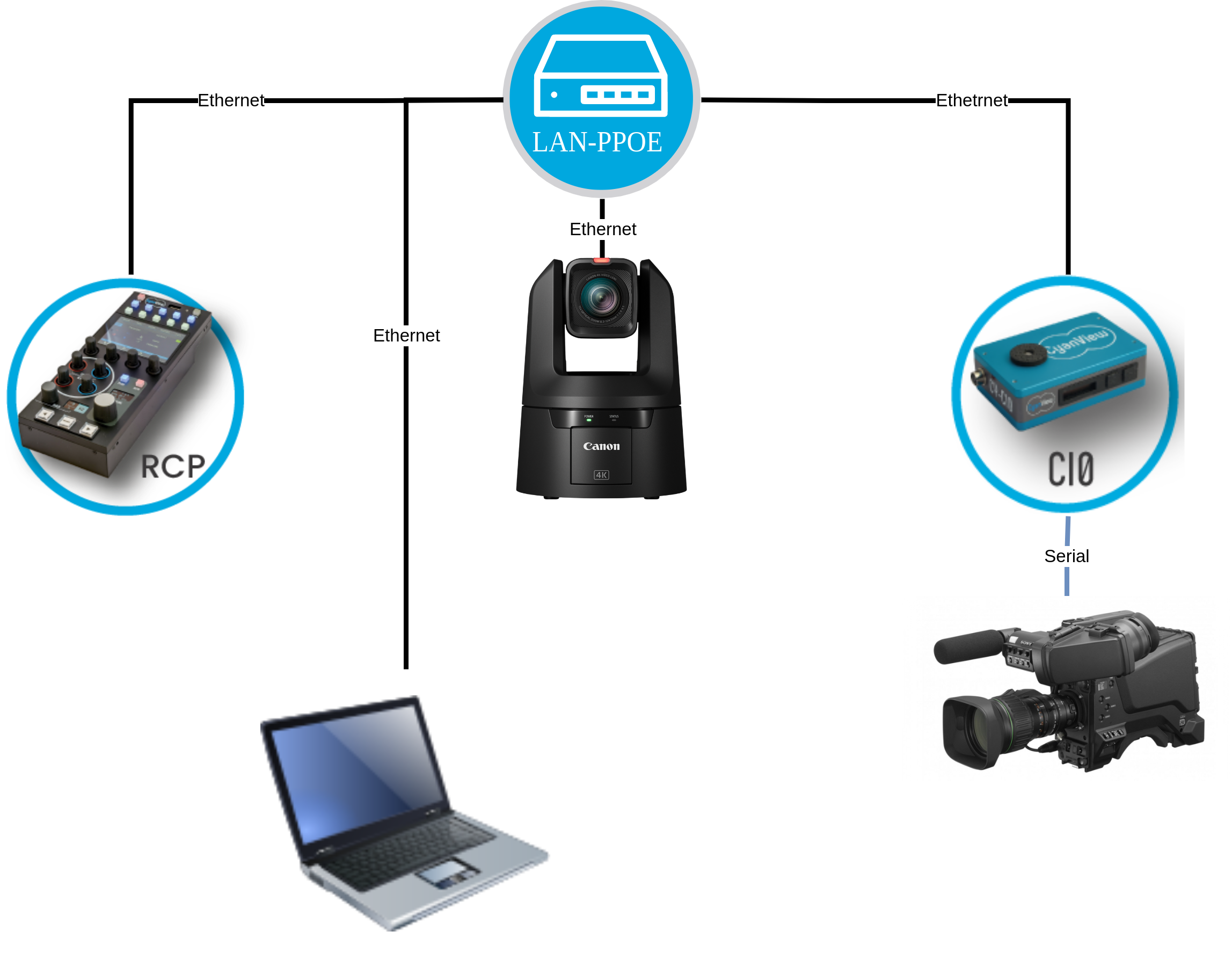
Reach the device
Each device has a serial number:
- cy-vp4-14-35
- cy-rcp-18-4
- cy-rio-15-151
- cy-nio-22-63
Let's take cy-rcp-18-4 the format means:
- cy-rcp is the device type, here a rcp
- 18 is the device batch ID (production)
- 4 is the unique number in this batch
You need the full serial cy-rcp-18-4 to identify completely a device.
Based on that, you can now reach your device by following this guide.
All the configuration is done in a web UI, no need to install any software.
Update your kit
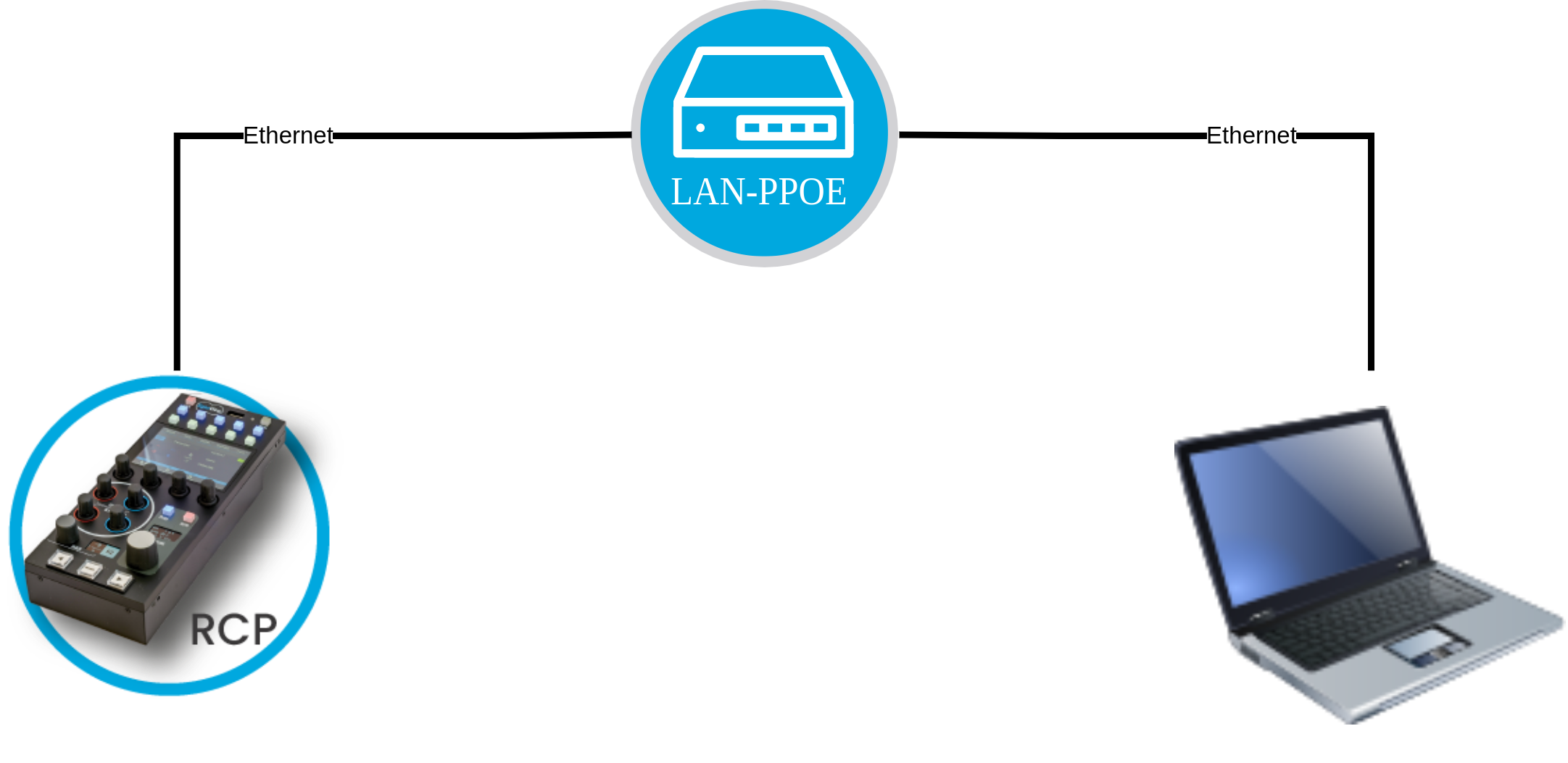
It is not mandatory, but a good starting point to update all your devices to the latest version.
You can follow this guide
Setup IP
Each device comes with a factory IP (10.192.X.Y/16).
You can add your own IP's to:
- match your company LAN.
- match your gear network (cam, switcher, etc.)
NOTE
The default IP (factory) is always there and can't be changed. You can add as much IP as you want.
If you need a physical network, you can use USB-ethernet dongles (NDI, dante networks for example).
Control your camera
Serial cam
If you have a Sony-8pin, LANC a mini camera or similar.
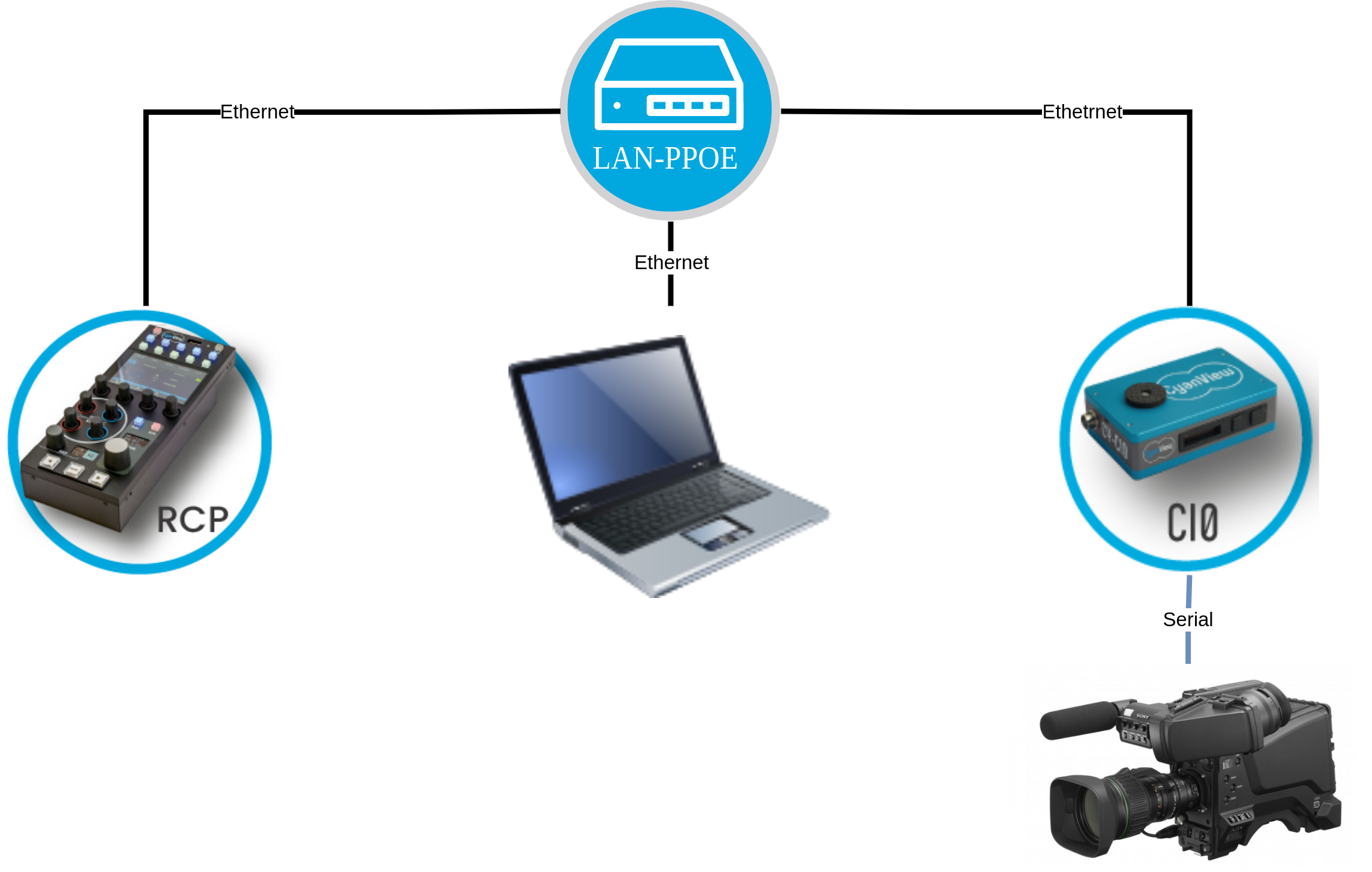
You will need:
- Your camera
- CI0
- cable to connect your cam to CI0
- RCP
You can follow this guide
IP cam
If you have a Panasonic PTZ, Sony FX9, Canon C300mk3 or similar
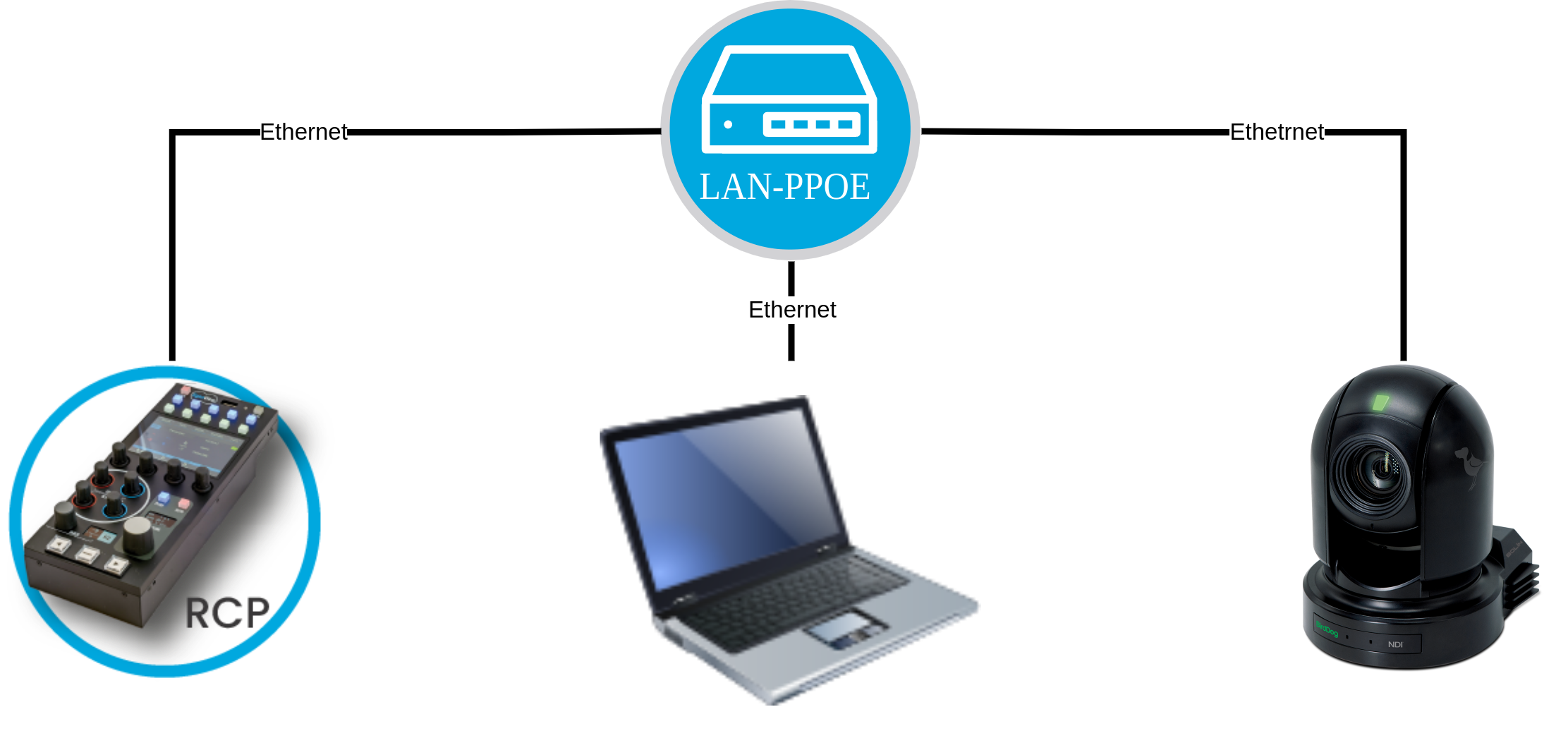
You will need:
- Your camera
- RCP
You can follow this guide
RIO-live cam
If you have lens to control (or a serial cam)
- Your camera
- RIO-live
- cable to connect your lens
- WiFi dongle if the camera is WiFi (a FX9 without XDCA for example)
- RCP
You need to configure the RIO/RIO-live first.
Configure your camera:
- If serial: using this guide
- If IP : using this guide
Then configure your lens:
- If B4 : using this guide
- If tilta : using this guide
Then you can import your camera on your RCP.
Integrate with a Switcher/Router
The goal here is to have:
- Sync RCP with an auxiliary output
- Tally input
You can follow this guide
Integrate with a Color corrector
The goal here is to:
- control a color corrector (standalone)
- control a camera head and color corrector together (combined)
You can follow this guide
Tally
For a complete overview of various tally input/output, you can check this guide
We also tally light to bring tally to camera that doesn't have tally by default (sony FX3, etc.)
Further reading
You can find deeper integration guide and advanced tips in specific integration guide on this website.
Browse Docs & Manual > Integrations, sorted by brands.
If you have any additional question, don't hesitate to write an email to support@cyanview.com
You can find a list of available cables here
A nice case study that covers everything is on our blog